 YogaFold
YOGAFOLD · USER GUIDE
Get to know YogaFold, screen by screen
Explore how to find, organize, and remember poses with screenshots of the real app.
Notes and sequences shown in these screenshots are demonstration records.
01
Find and select poses
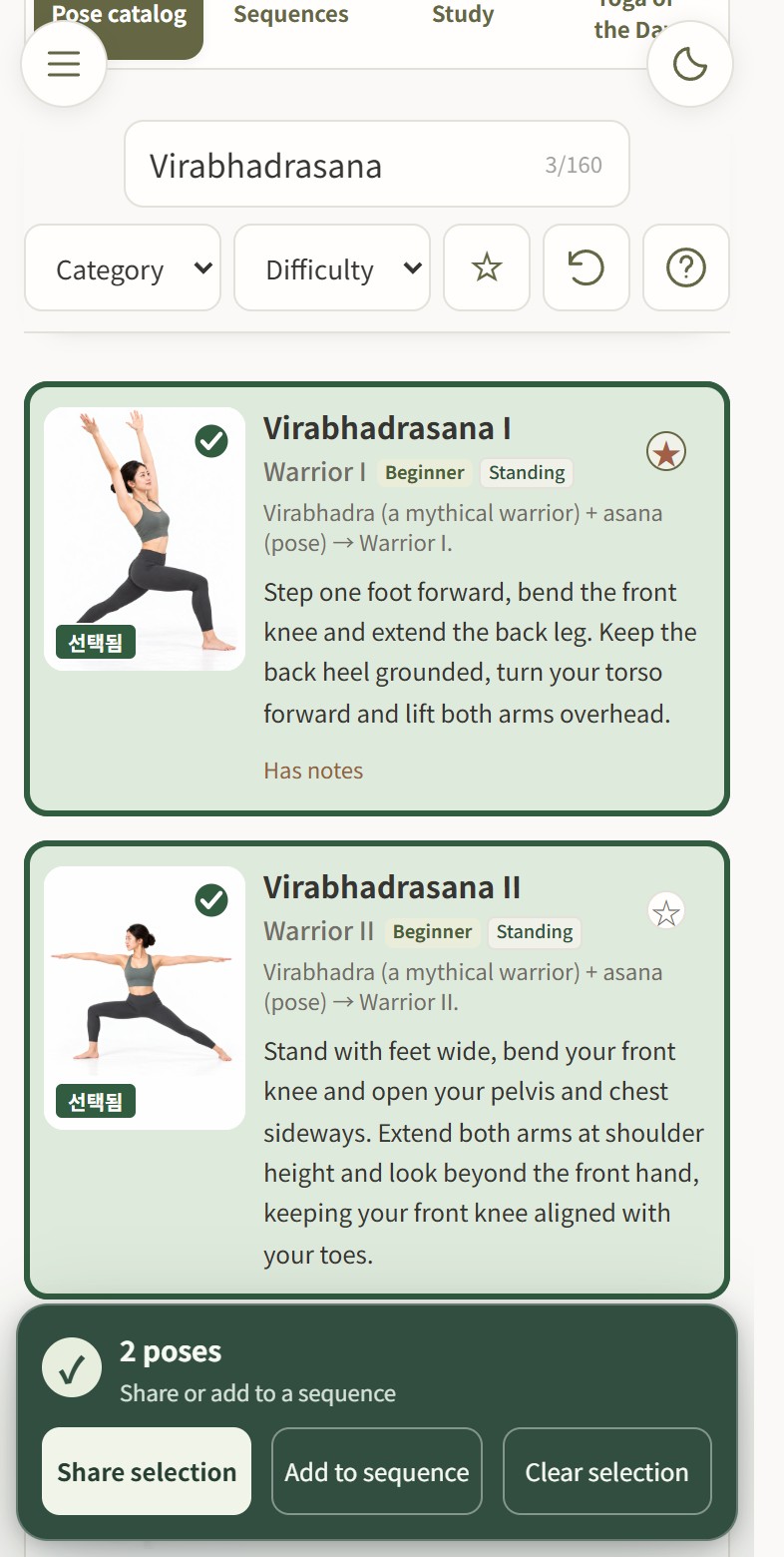
Find the poses you need with search, filters, and favorites.
- Search by Korean, Sanskrit, English, or a word from the description.
- Narrow results by category or difficulty. Tap a star to save a favorite; the star filter shows your favorites.
- Tap a photograph to select its card and reveal the selection tools below. Tap it again to deselect.
02
Read details and keep notes
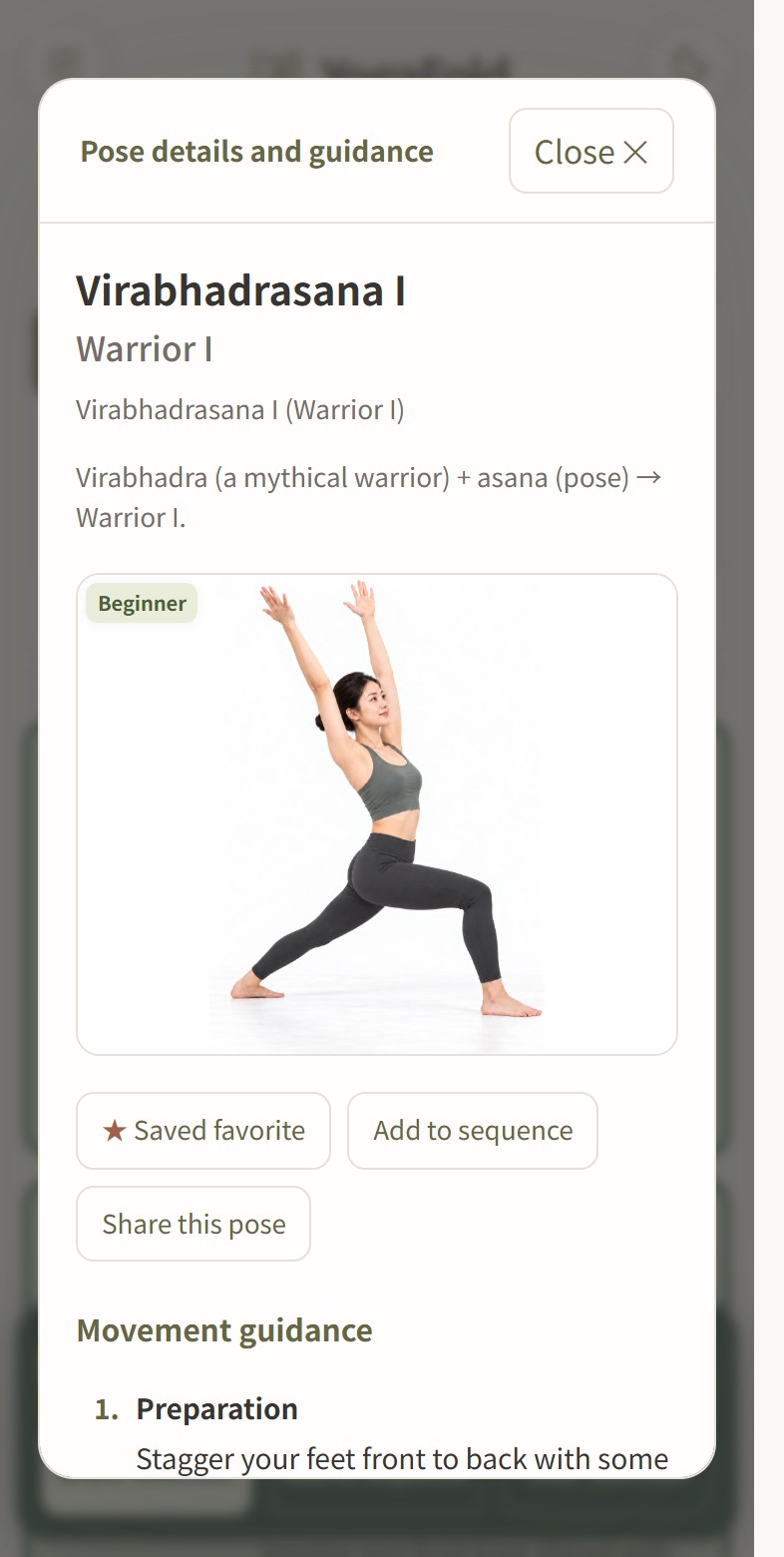
Photographs select cards; names and descriptions open details.
- Tap a pose name, description, or etymology to open its details.
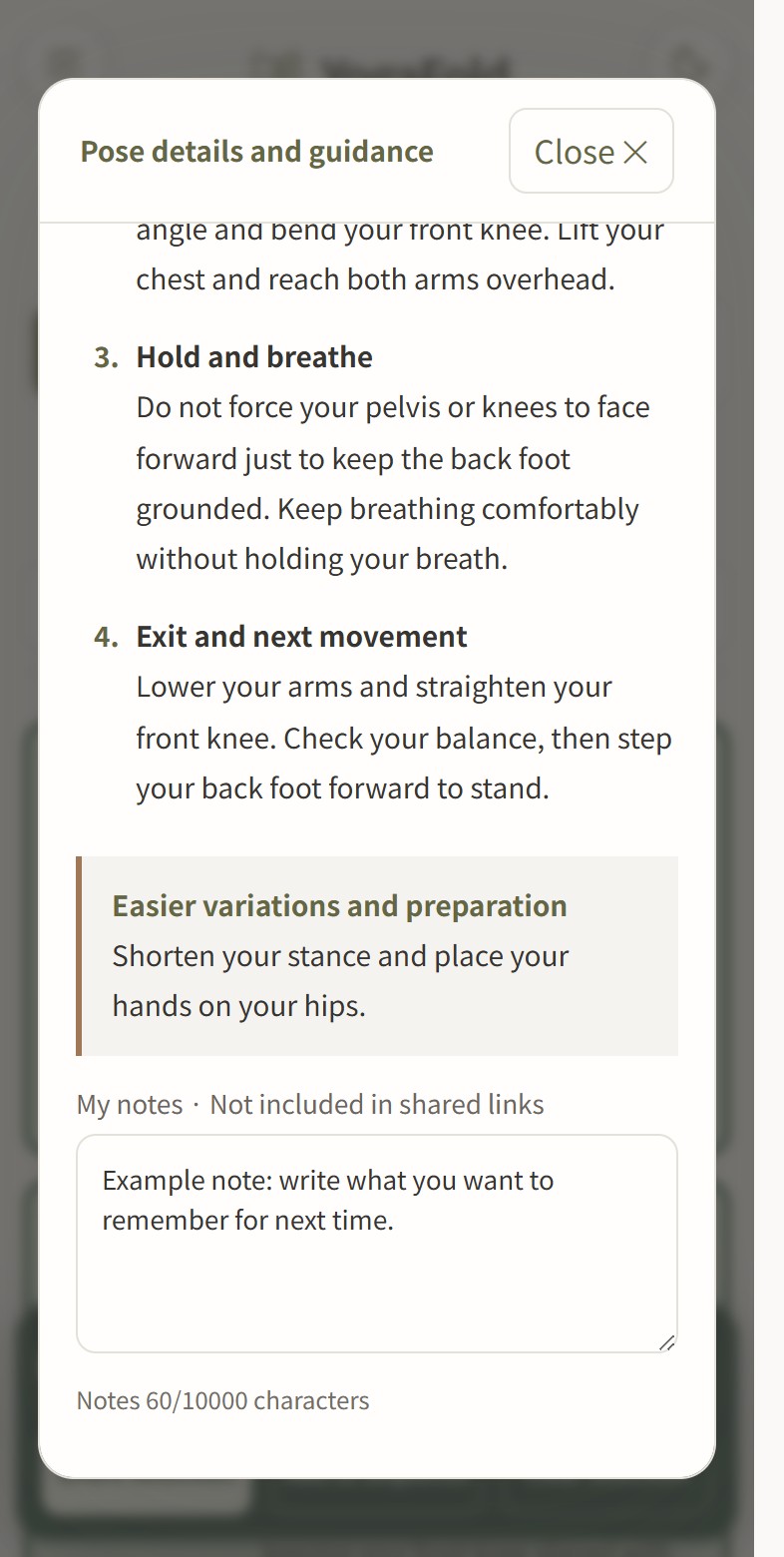
- Read the Sanskrit alphabet spelling, English name, meaning, movement guidance, and easier variations.
- Scroll to My notes to record what you want to remember. Each pose accepts up to 10,000 characters and changes save automatically.
- Open My notes from the menu to browse your notes and search by pose name or note text.
03
Build your own sequence
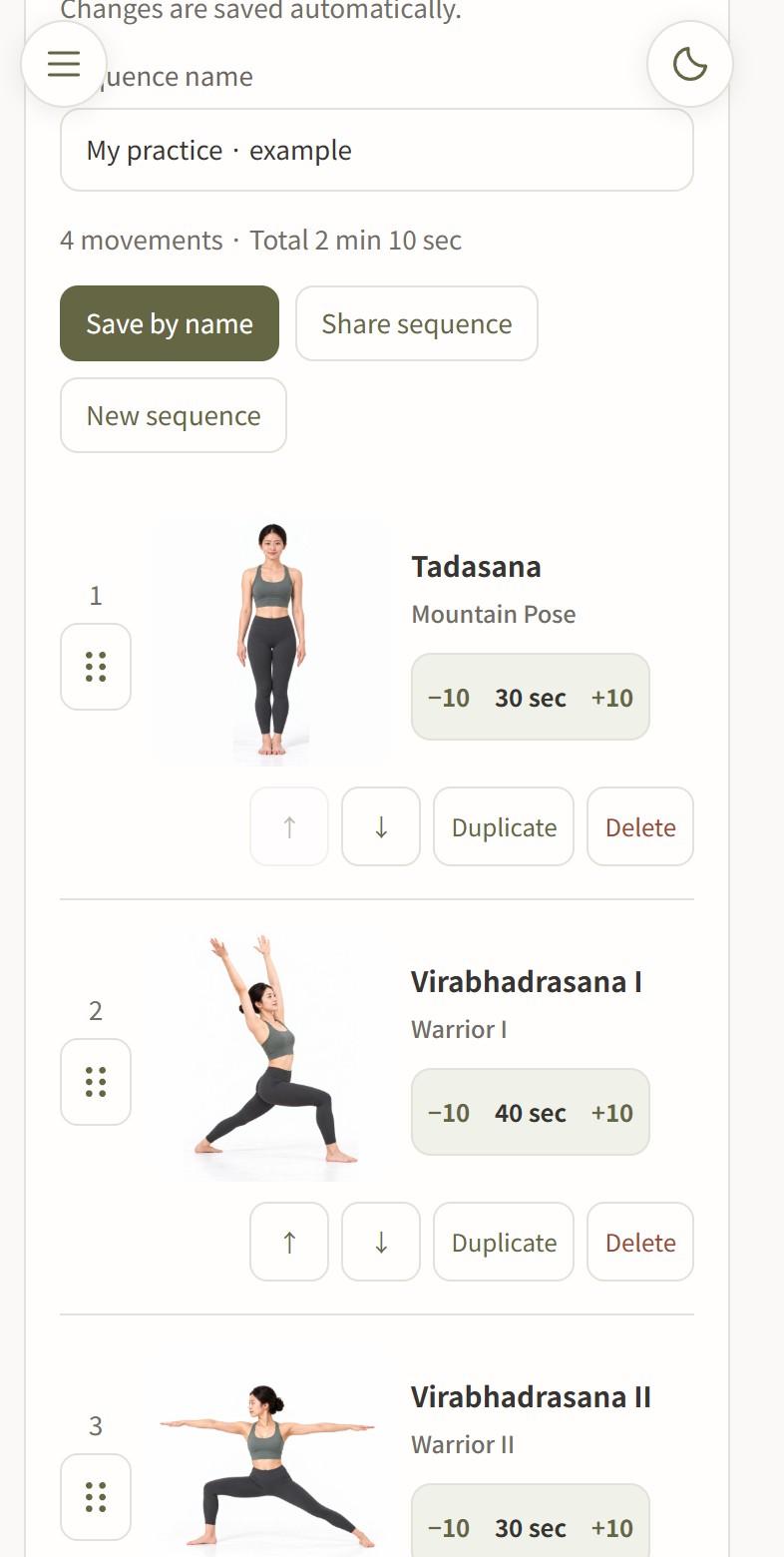
Arrange selected poses in your preferred order and timing.
- Select photographs in the catalog, then tap Add to sequence below.
- In Sequences, drag a handle or use the up and down buttons to reorder. Tap a photograph to read details.
- Adjust holding time in 10-second steps with − and +. Undo deletion restores movements during the current editing session.
- Enter a name and choose Save by name to reopen it from your saved list. A recommended sequence button asks before adding its arrangement.
04
Share an image or link
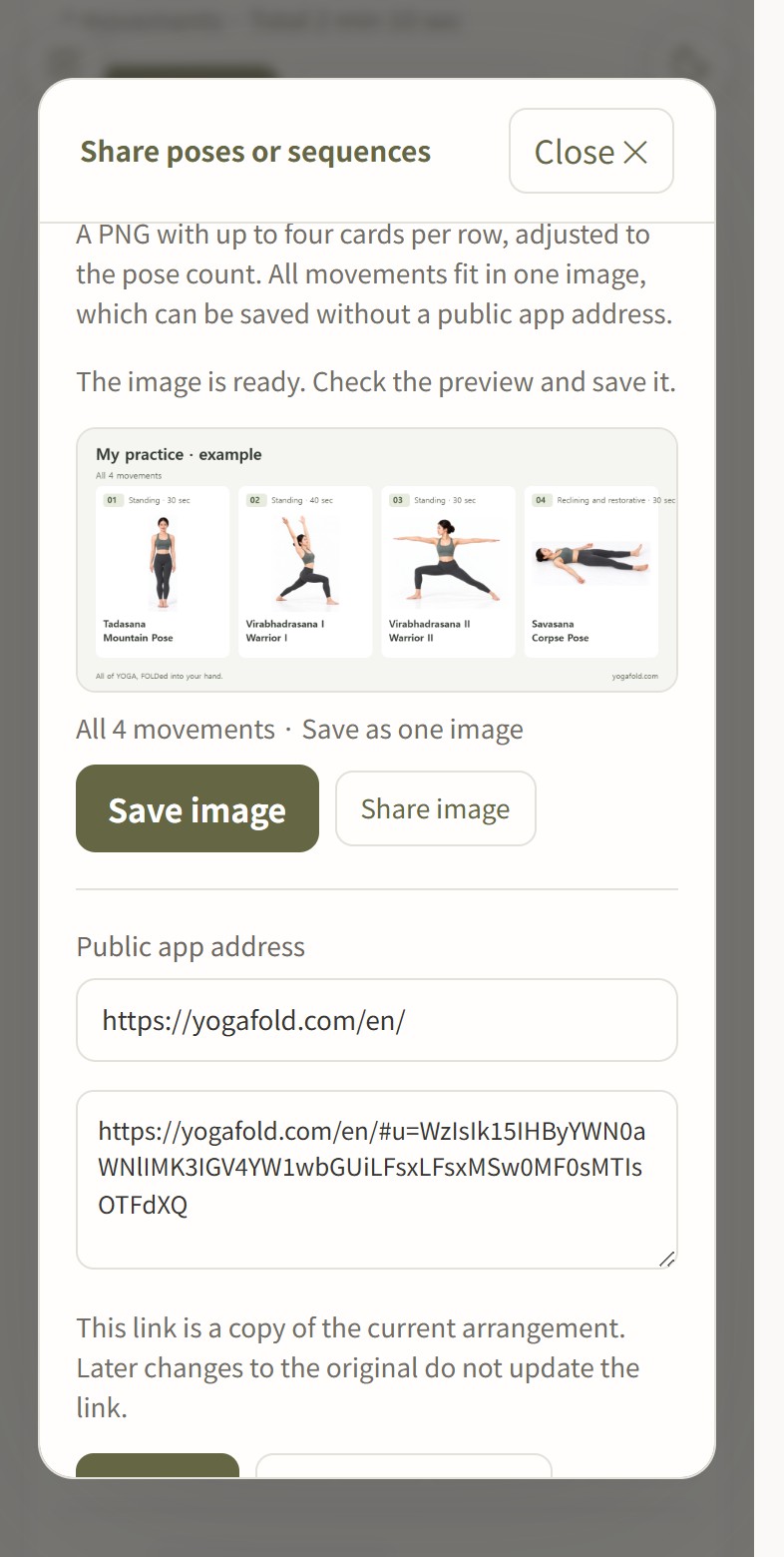
Share one pose, several poses, or a complete sequence.
- Use Share selection in the catalog, Share sequence in Sequences, or Share this pose in details.
- A card image is created automatically when sharing opens. Choose Save image to keep a PNG file.
- Copy the link or use device sharing where supported. Check the title and movement order before sending.
05
Learn pose names from photographs
Recognize names, recall them yourself, and revisit missed poses.
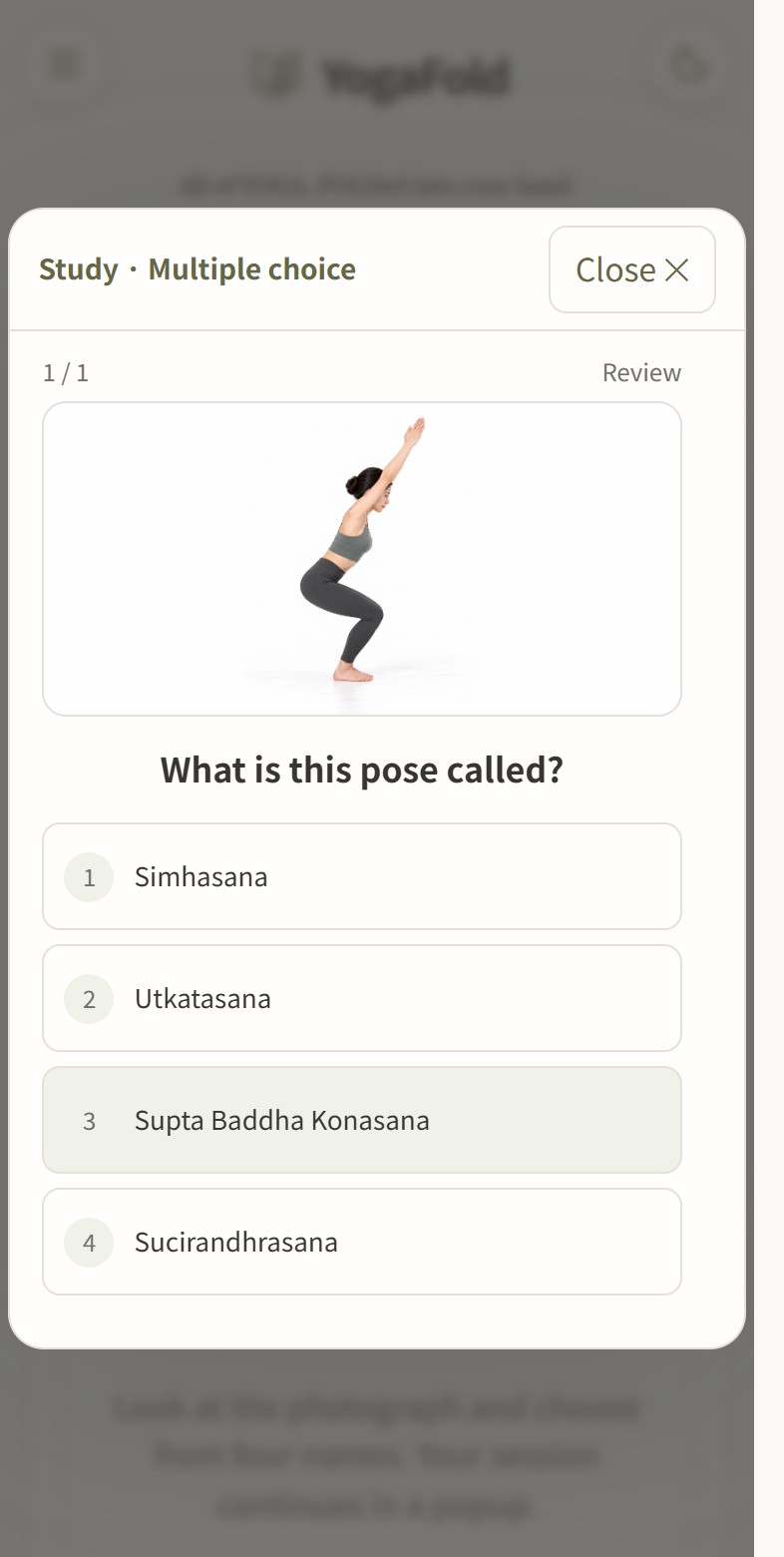
- In Study, choose Beginner, Intermediate, Advanced, or Review. Each session includes up to 10 poses.
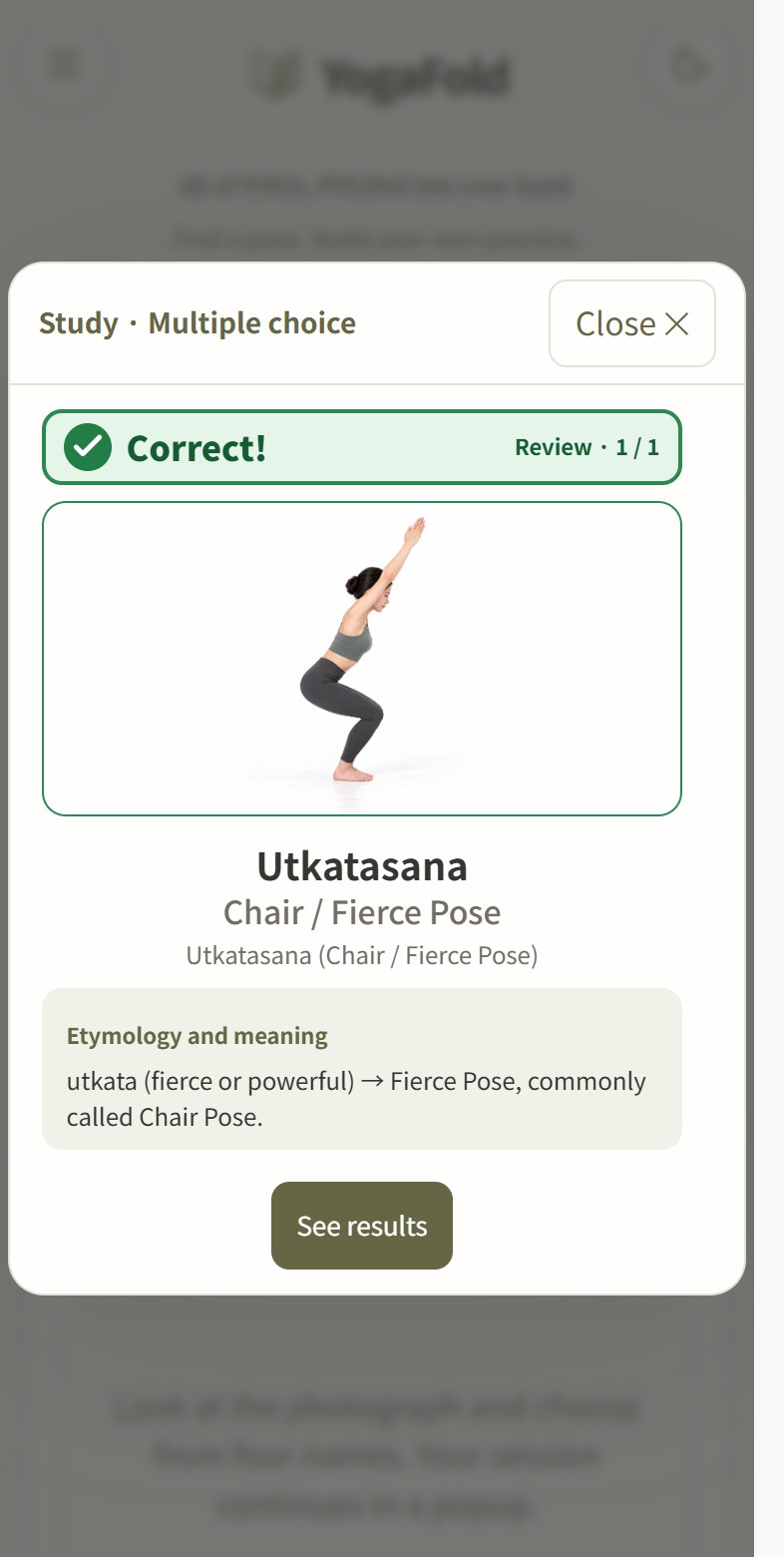
- Multiple choice is the default. Choose the Sanskrit name from four options to see whether your answer was correct.
- Self recall needs no typing. Think of the name, reveal the answer, then choose I didn’t know or I knew it.
- Answers show the alphabet spelling, English name, meaning, and etymology. Missed poses appear in Review, and Resume studying returns to a session you closed.
06
Print or save as PDF
Keep a reference you can read away from the app.
- First open the catalog view or personal sequence you want to print.
- Open the top-left menu and choose Print / Save PDF.
- Choose a printer or Save as PDF in the browser print dialog. Sequences use four movement cards per row.
07
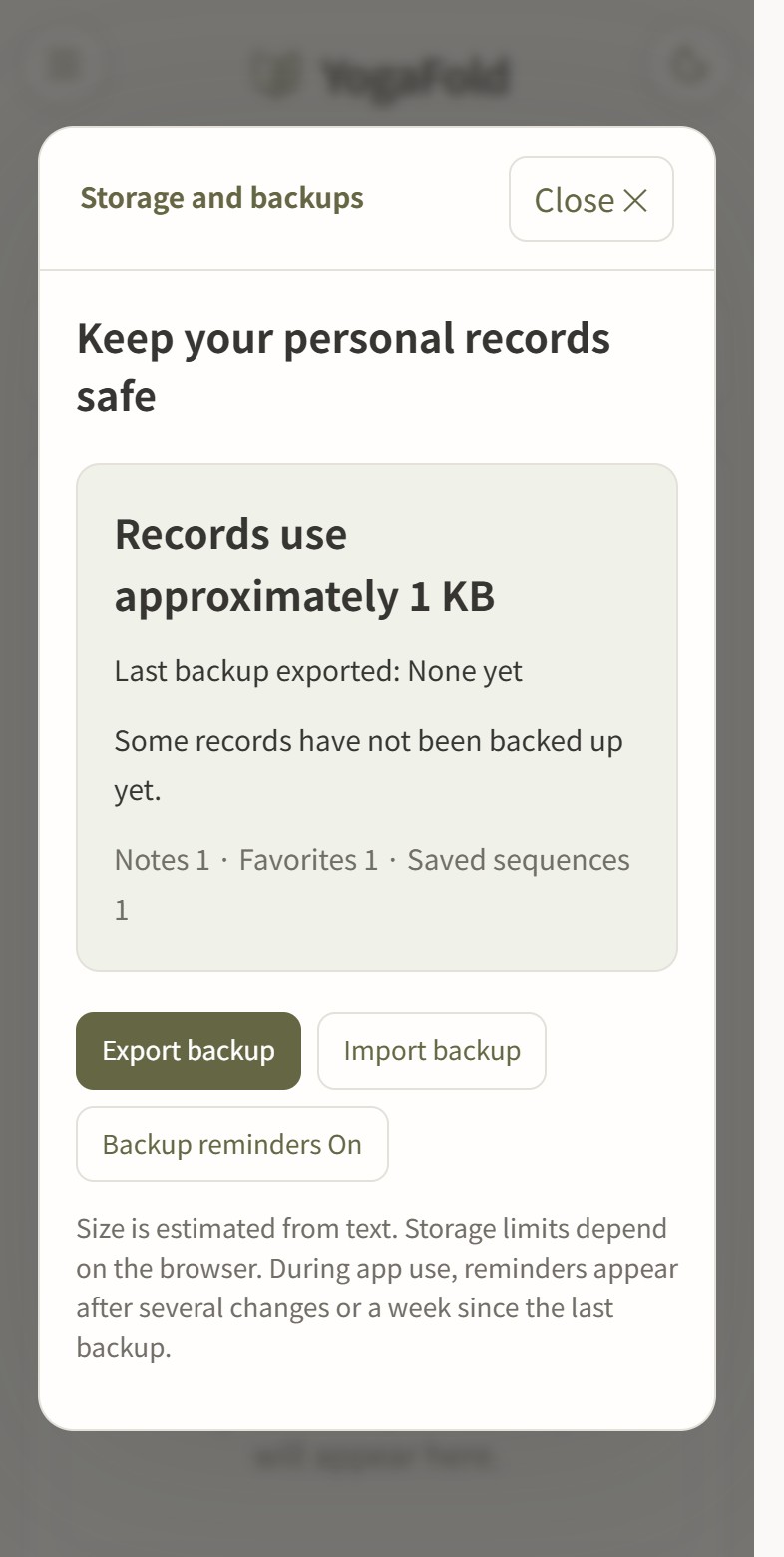
Back up records and move devices
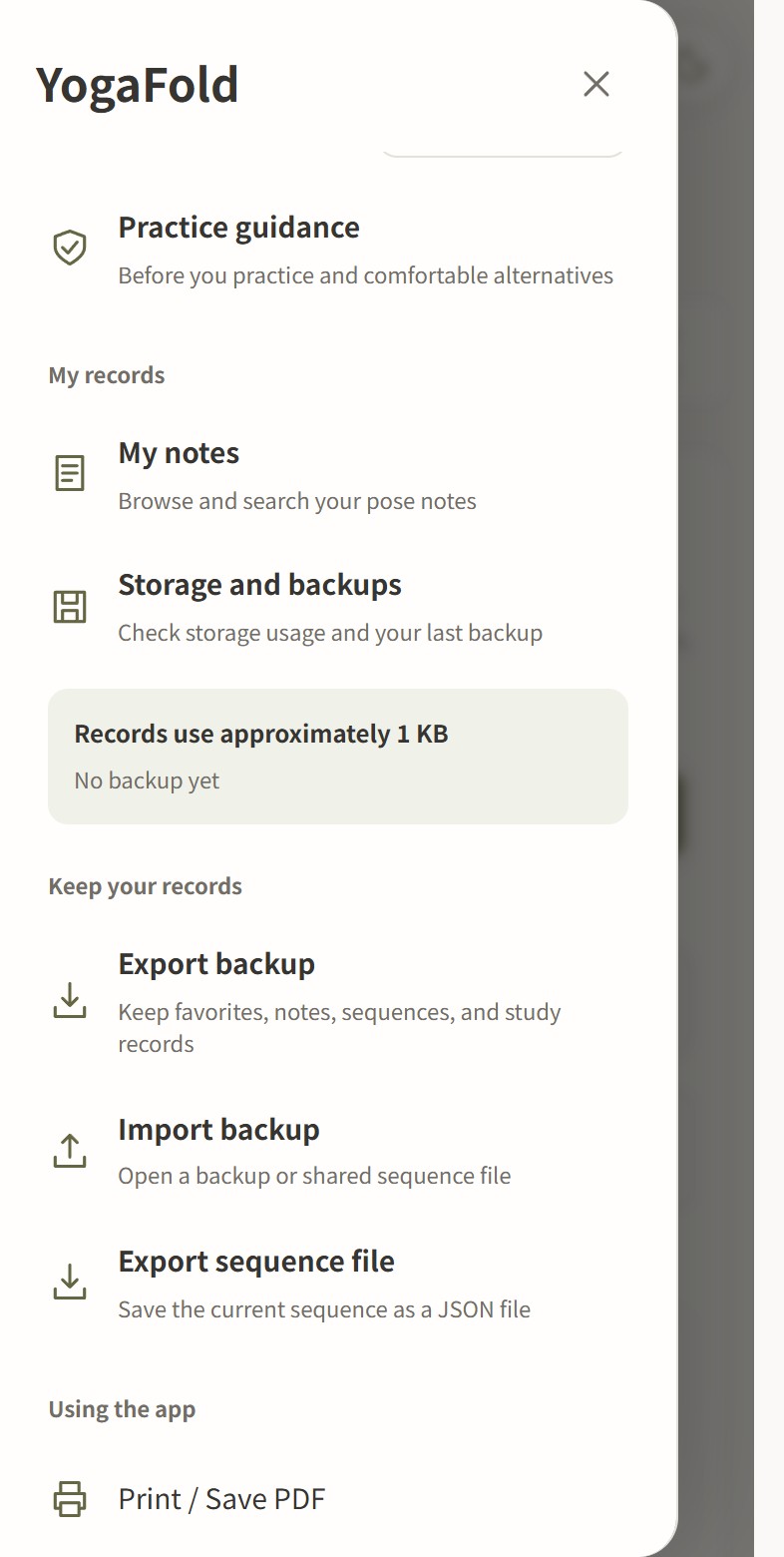
Your personal records stay in the browser you are using.
- Open Storage and backups in the menu to check record size and the last backup date.
- Export a backup to keep favorites, notes, saved sequences, and study records in a file.
- Open the site in another browser or device and import the file. Records are merged with those already present.
Ready to try it?
Start by finding one familiar pose in the catalog.
Open YogaFold